2025
Mou
Admin Page
1. Booth Configuration
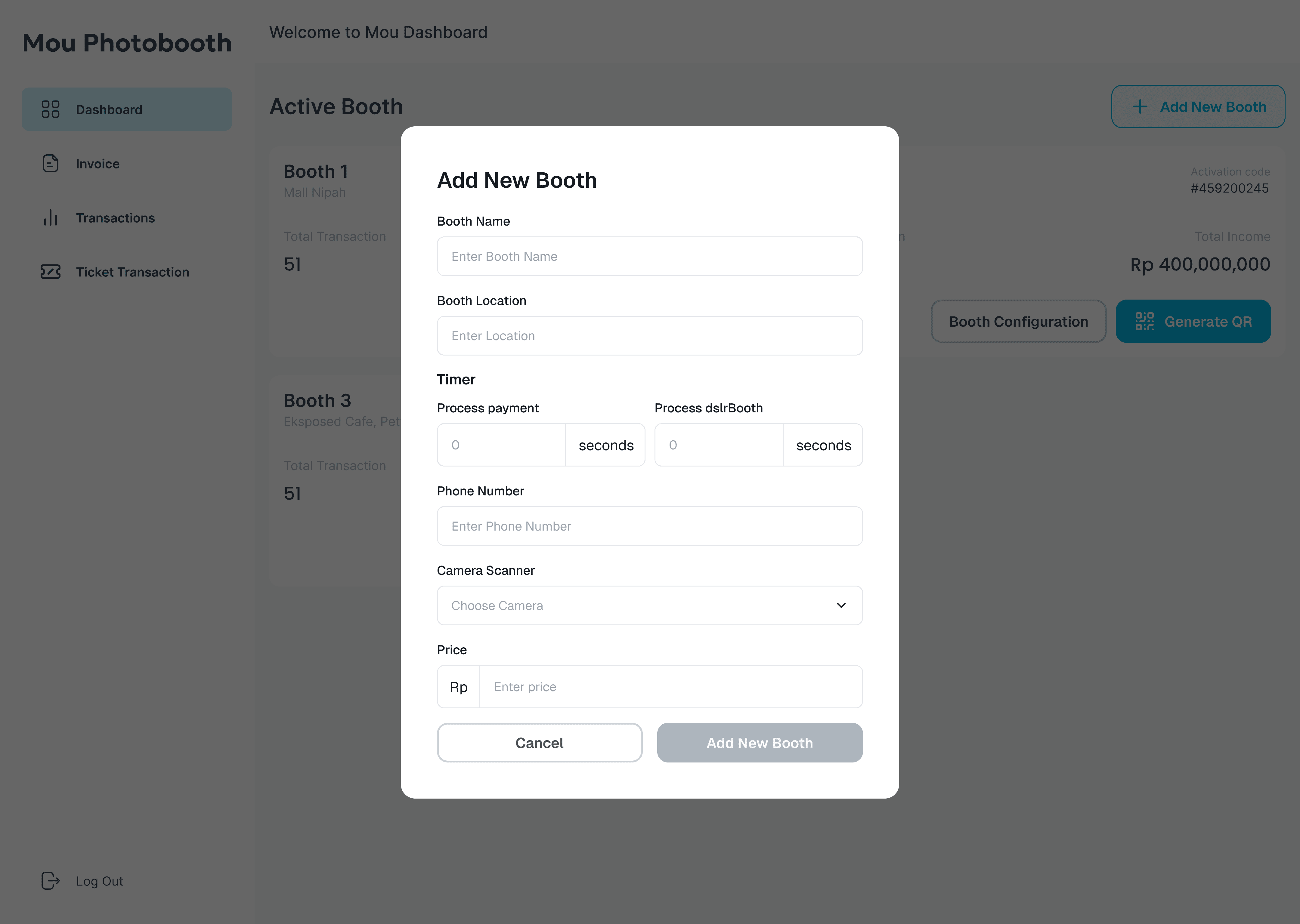
Admins can easily add new or manage booth details:
Booth name
Location (e.g., Mall A, Cafe A)
Ticket price
Timer for payment session
Timer for photo session
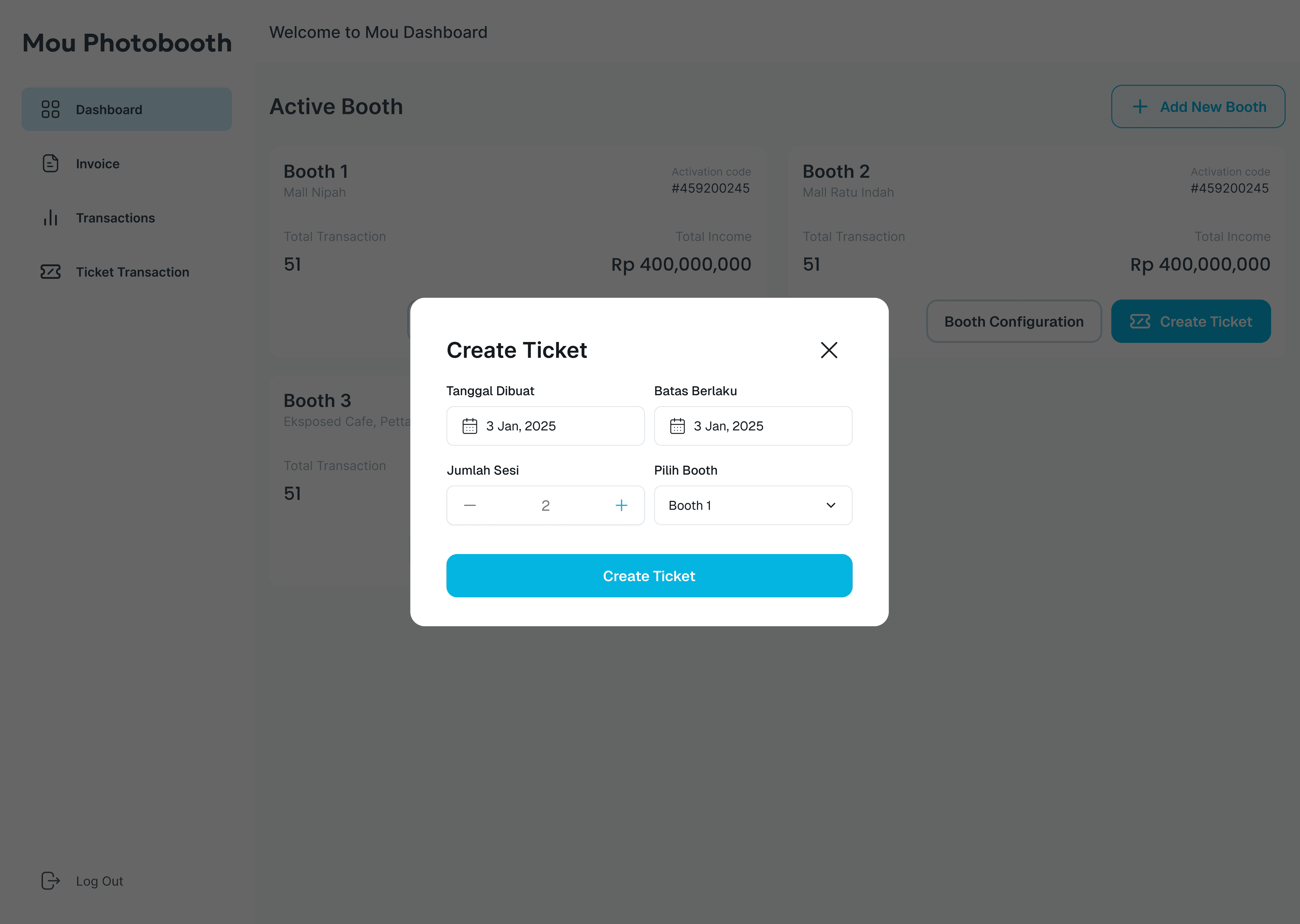
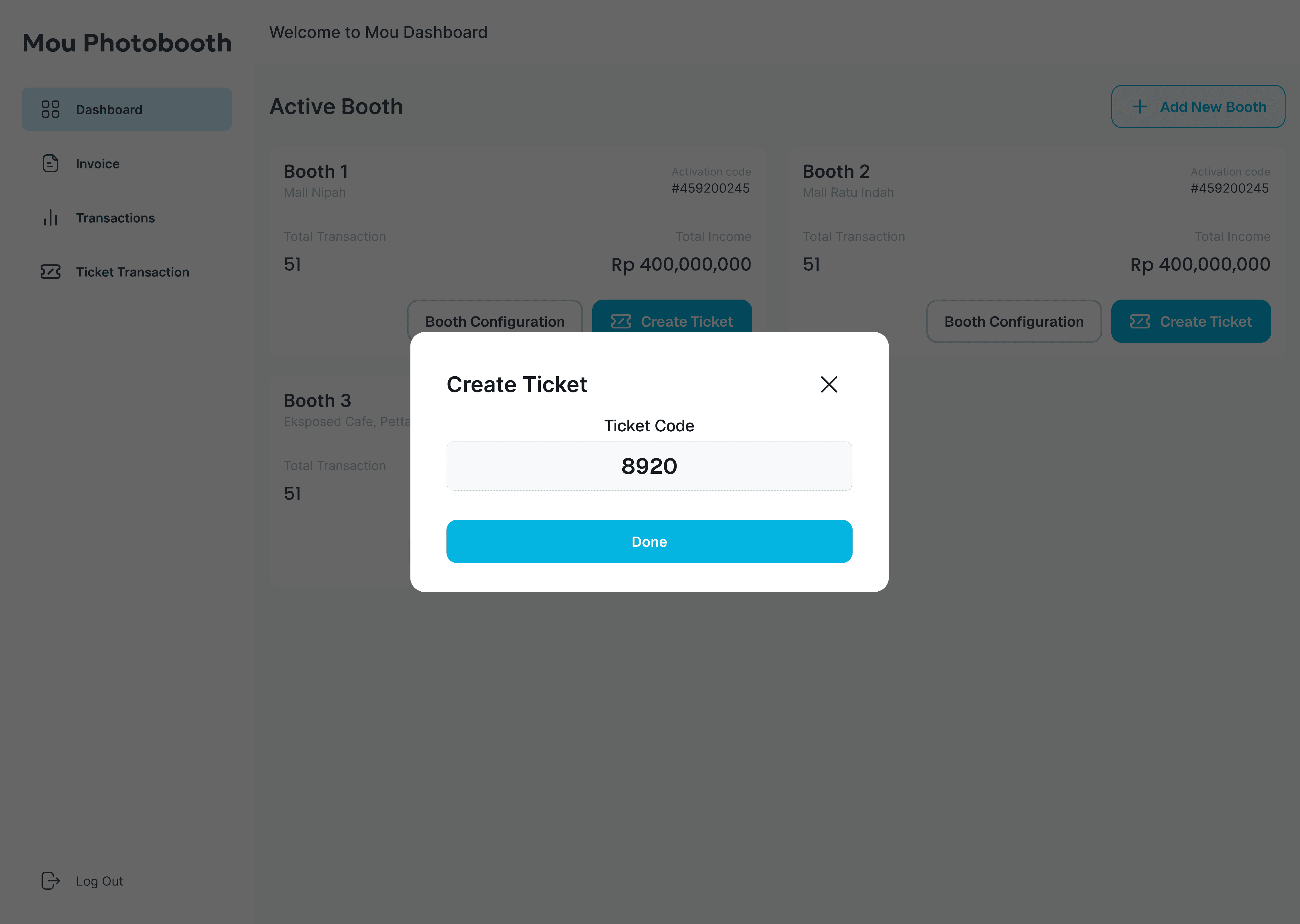
2. Ticket Creation
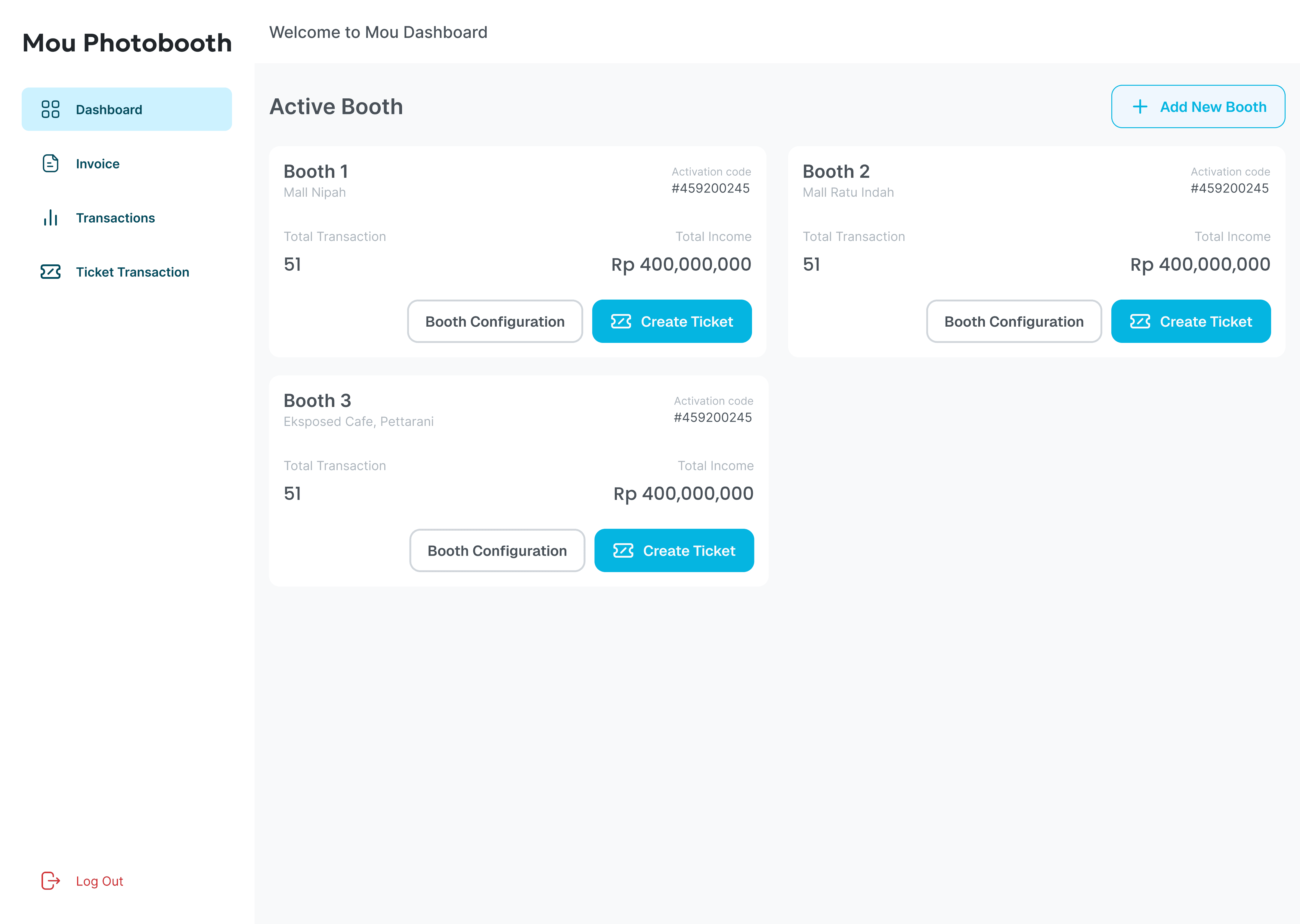
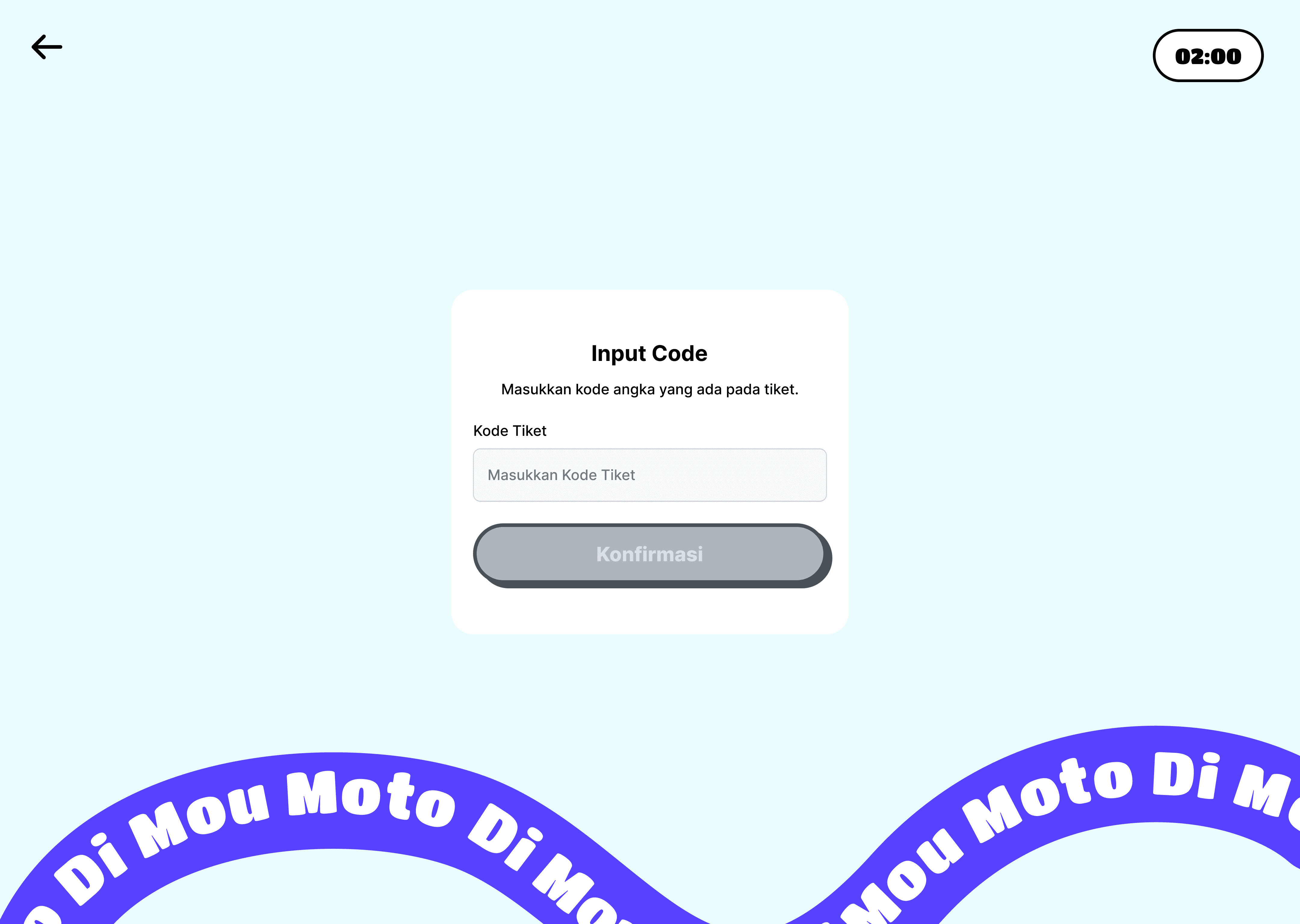
Admins can generate tickets with unique codes. These codes can be used by customers to access the booth instead of QR payments. So, people who want to pay with cash can use this payment option.
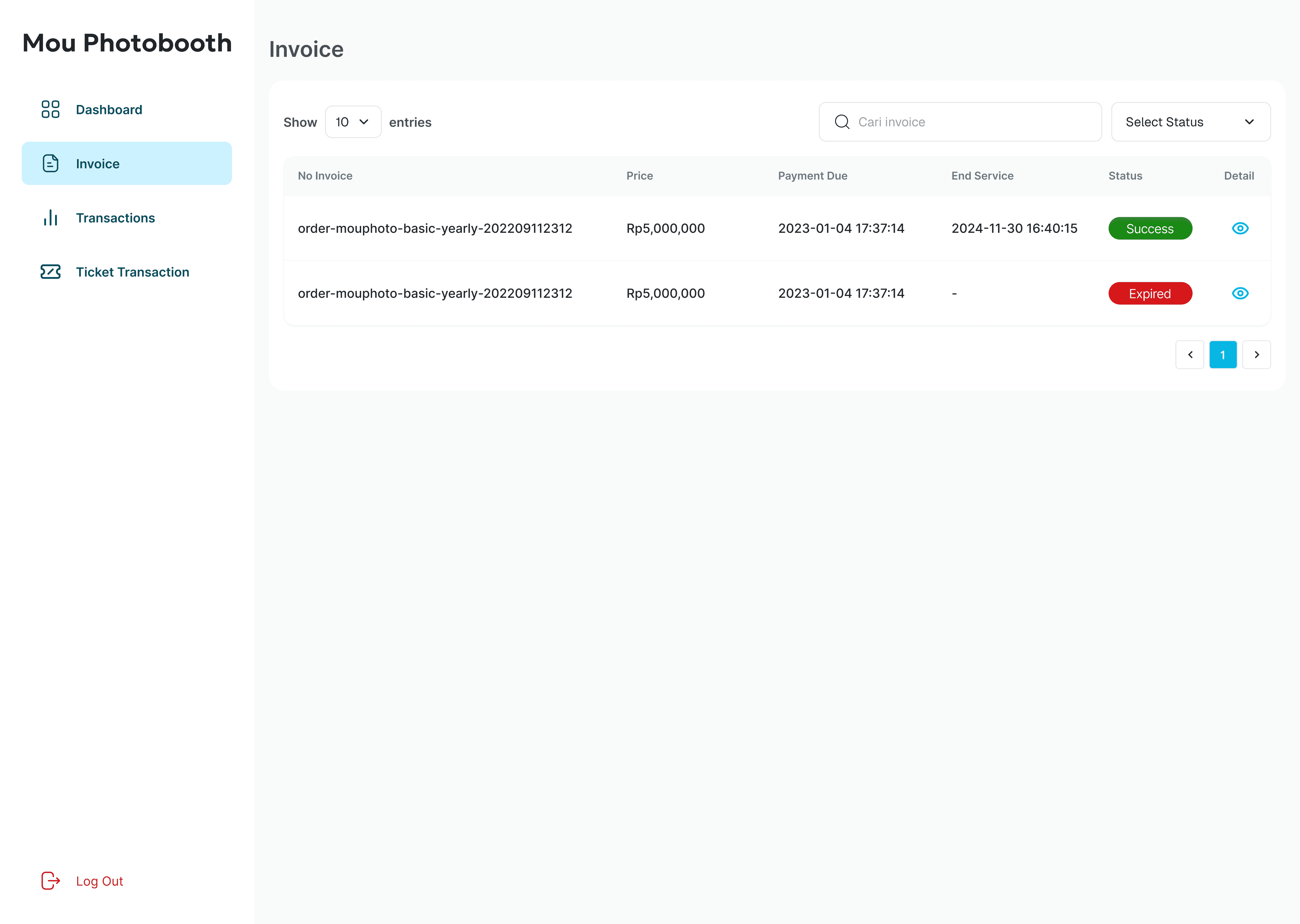
3. Invoice Page
A clean invoice page to keep track of payments.
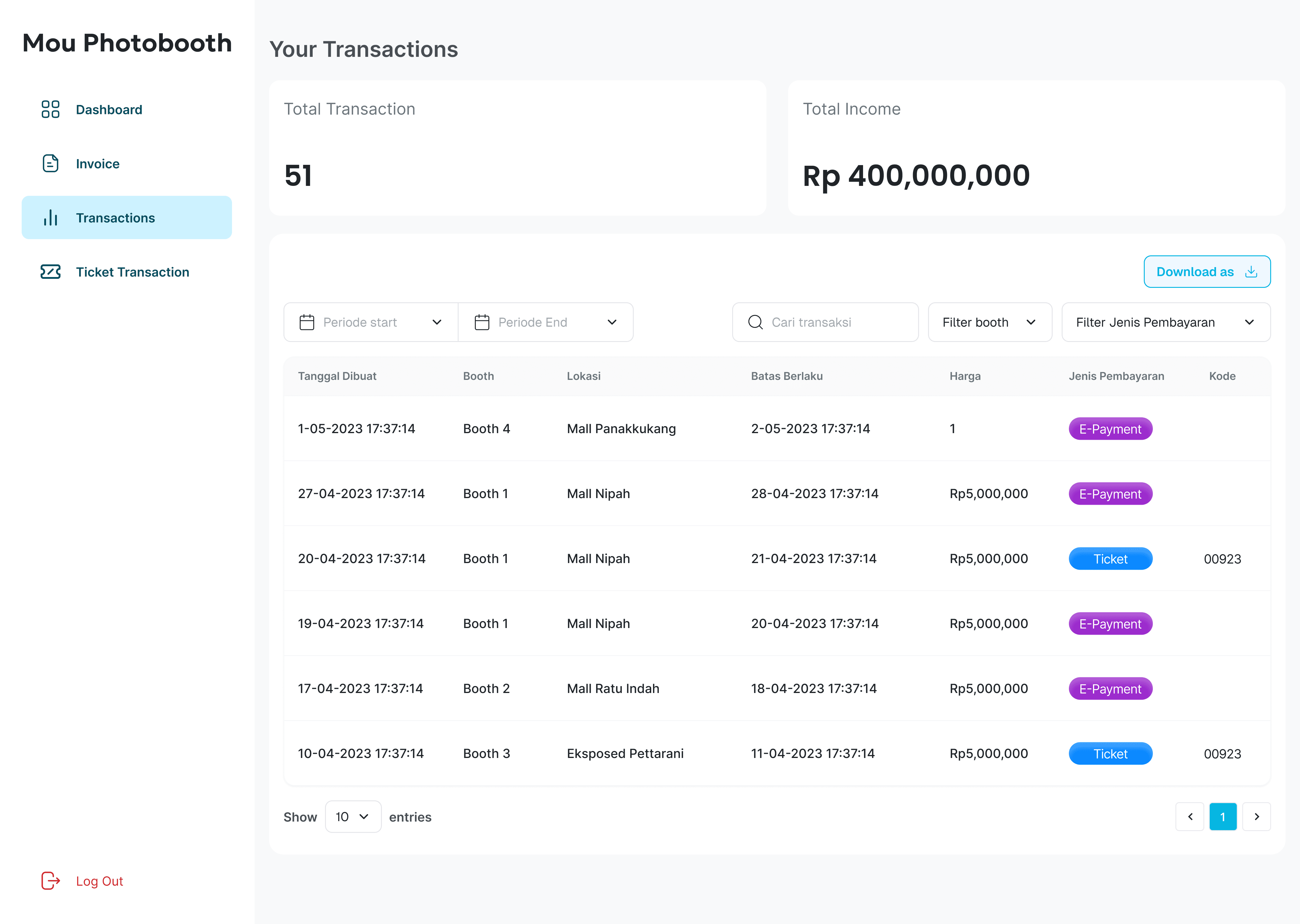
4. Transactions
All transactions (QRIS or ticket-based) are recorded here.
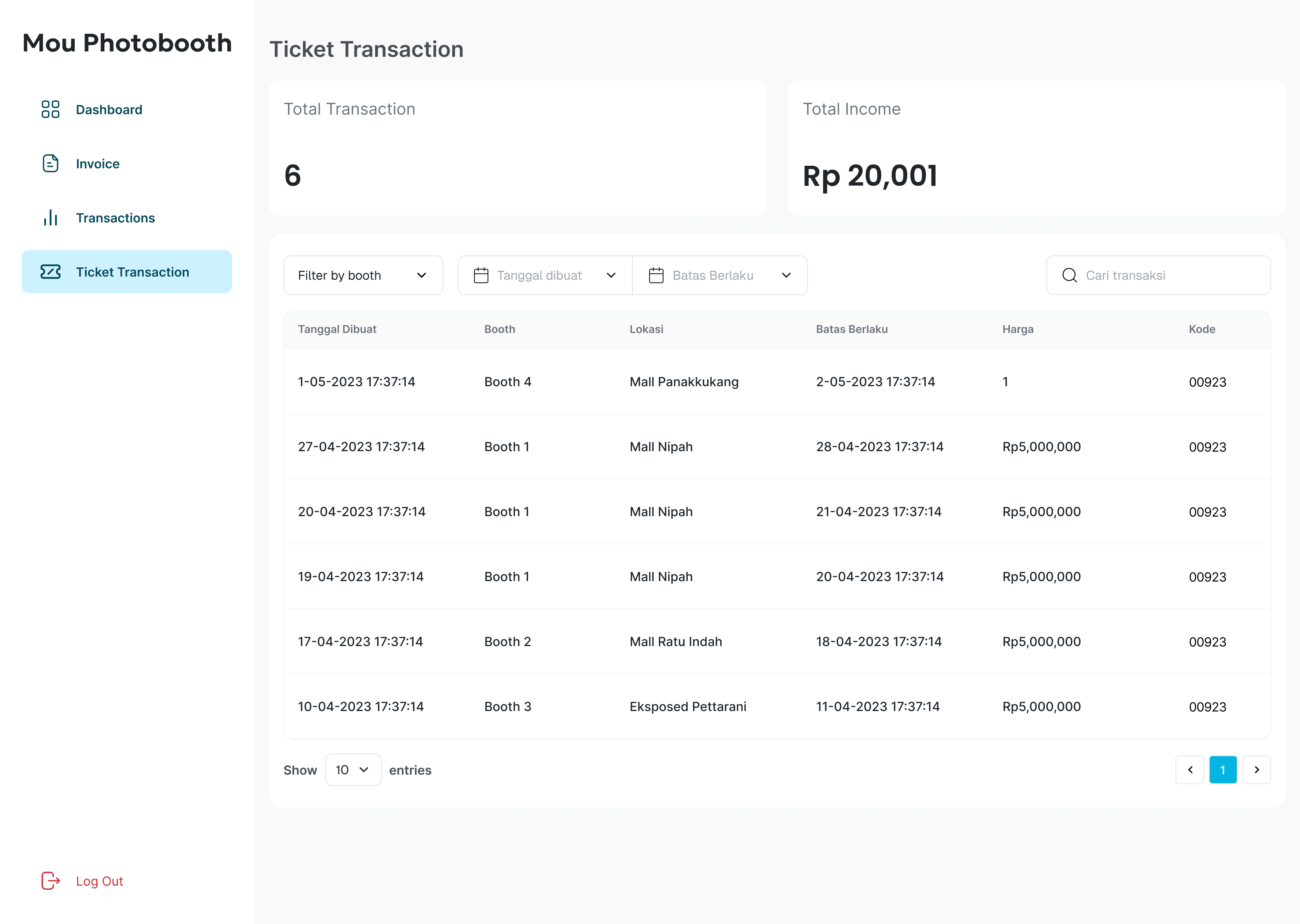
5. Ticket Transactions
A dedicated section just to monitor ticket-based transactions. It helps admin to track the ticket.
Customer Page
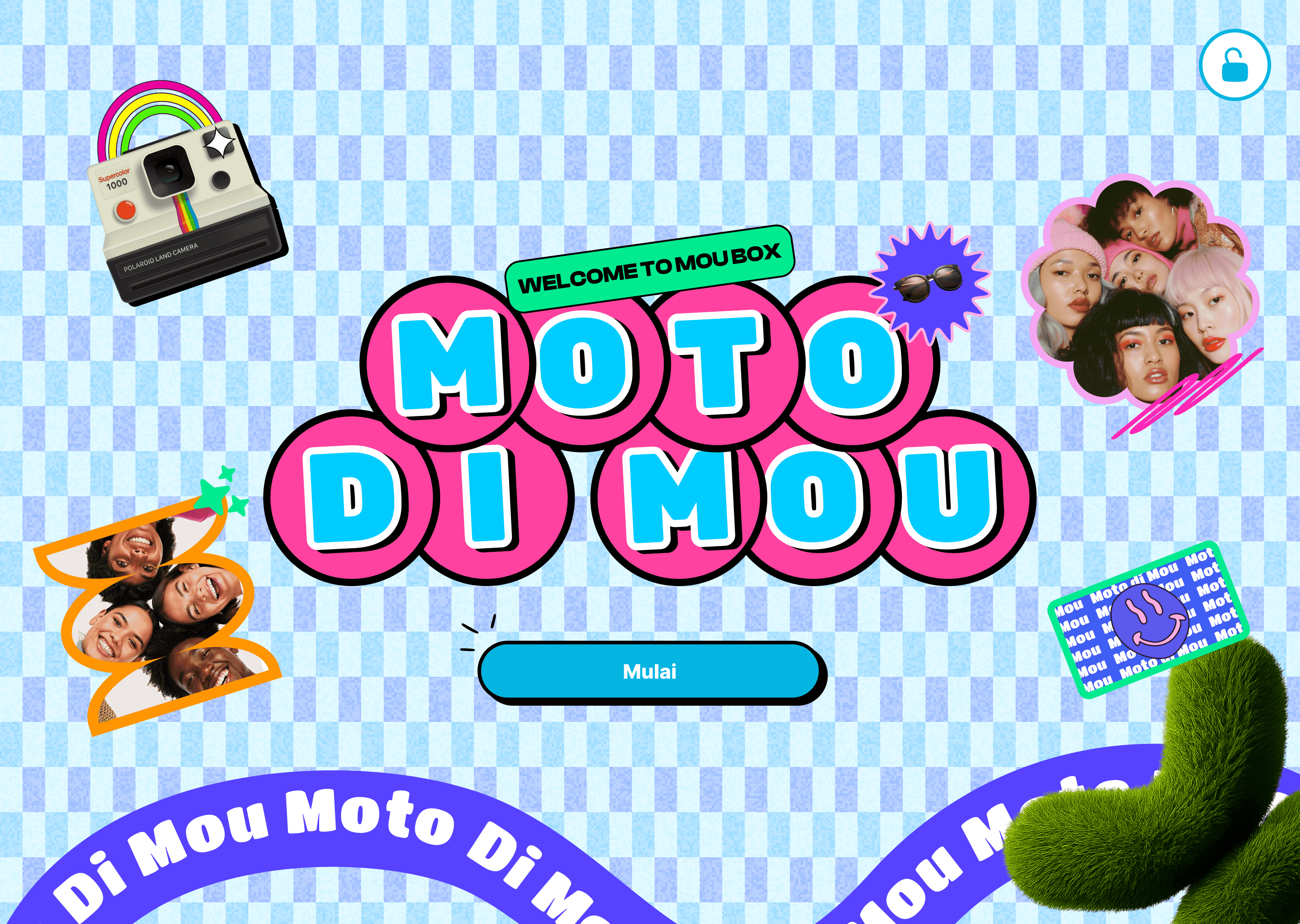
1. Main Screen
The home screen is designed to be colorful, trendy, and youth-friendly. Big button right in the middle saying “Start” so users don’t have to think twice.
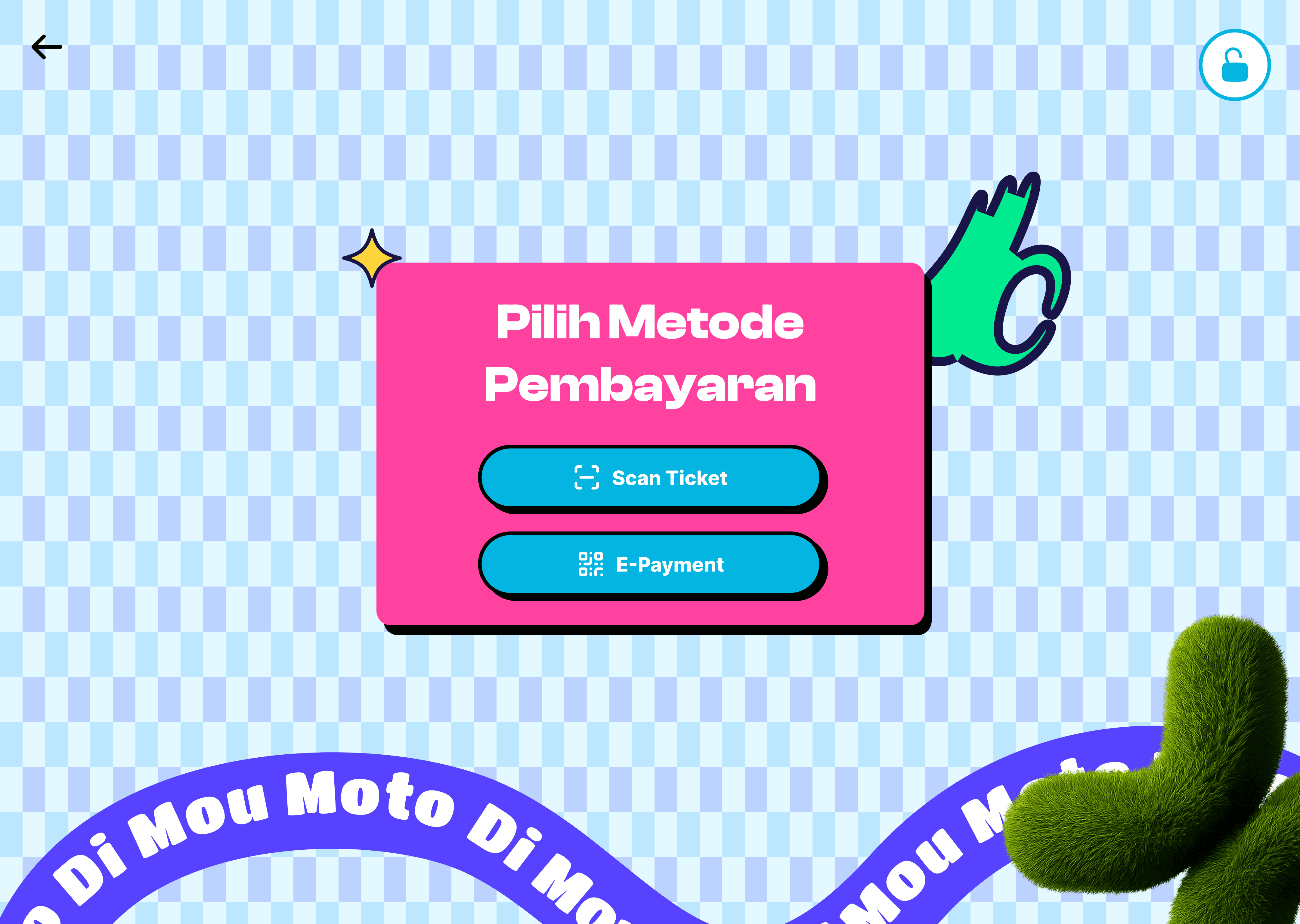
2. Payment Method
Customers can choose between:
QRIS (scan & pay instantly)
Ticket Code (enter code from admin/cashier)
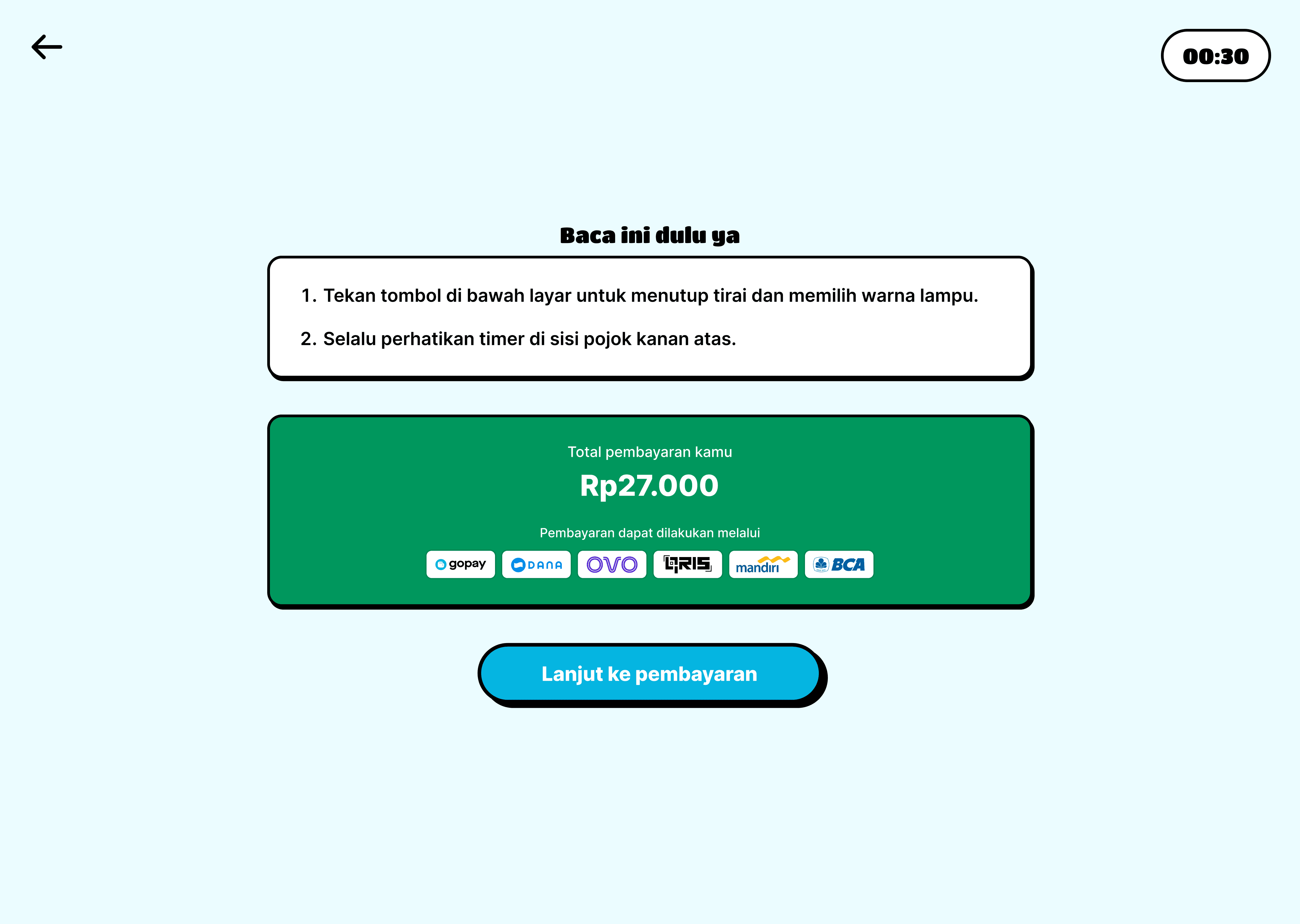
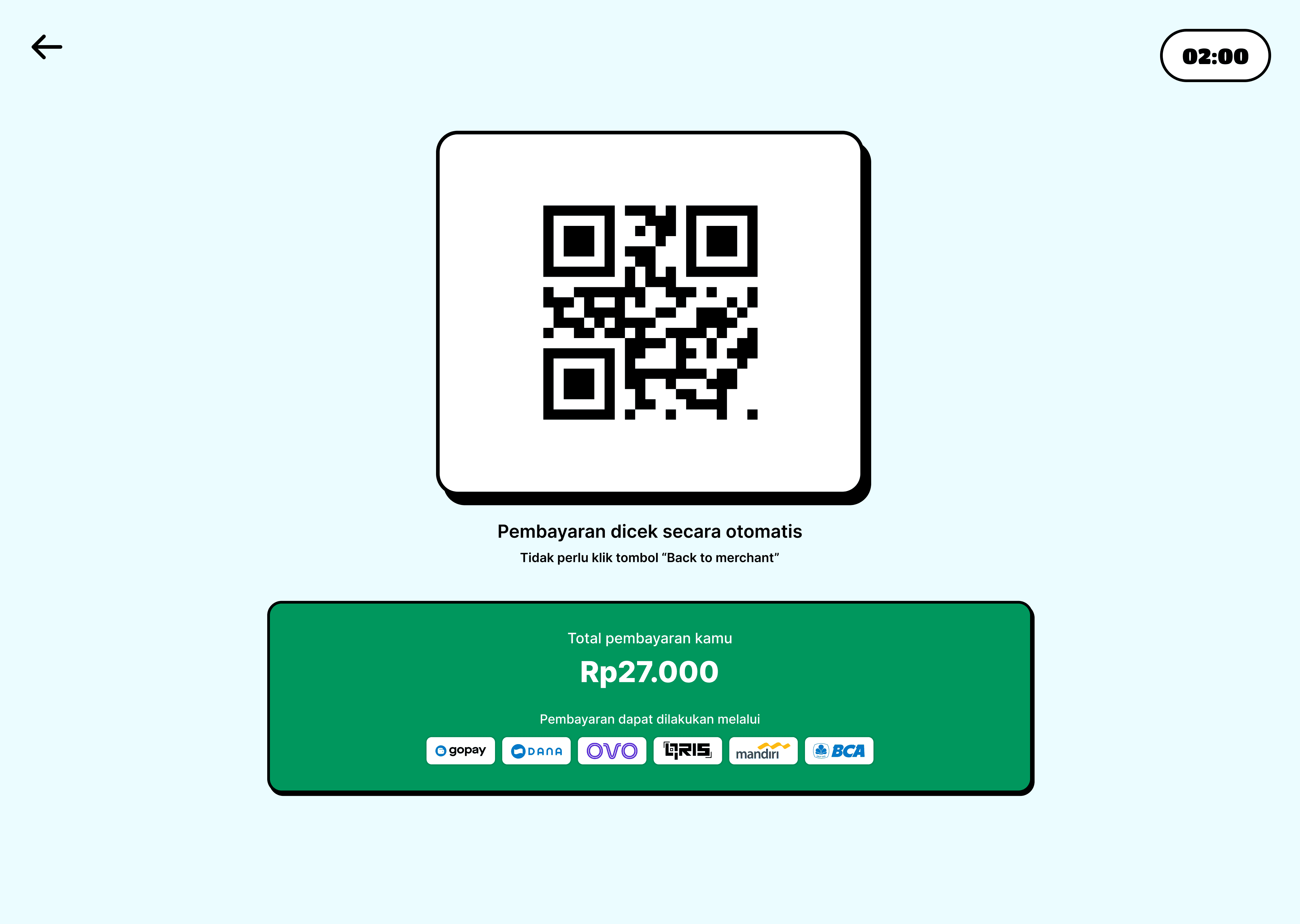
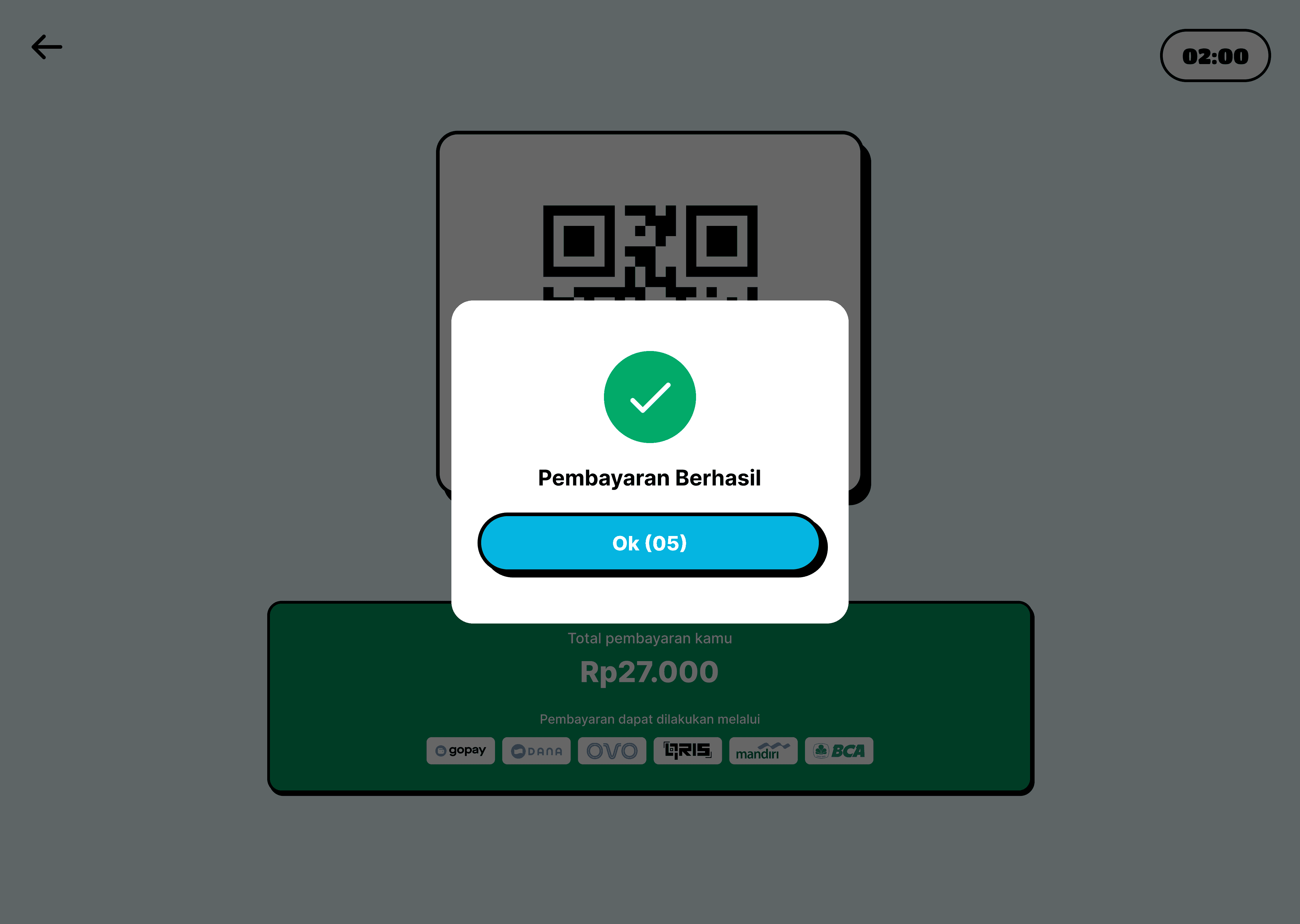
3. QRIS Flow
Scan QR code
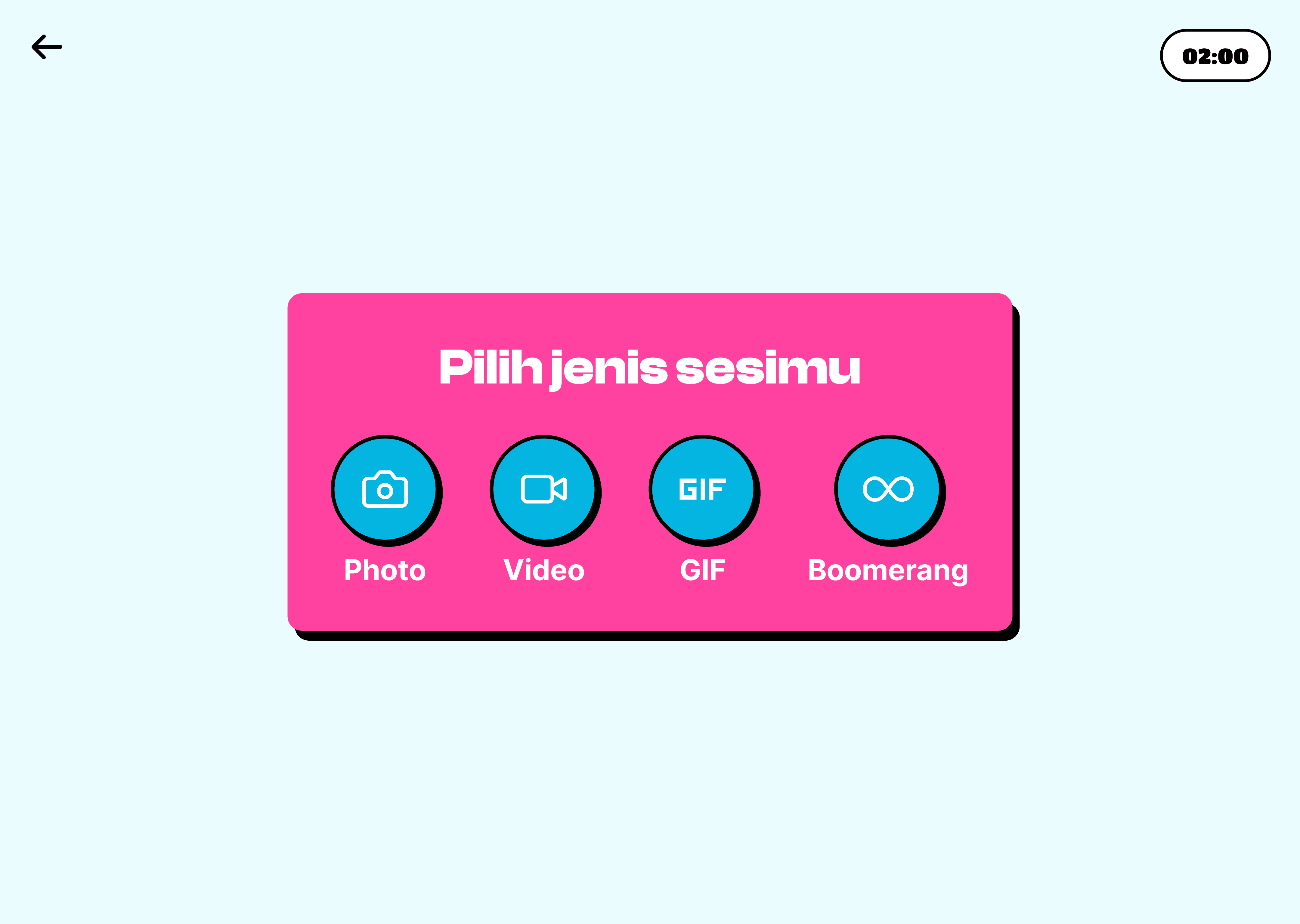
Once payment is successful → move to the session type
Choose session: Photo / Video / Boomerang / GIF
Quick tutorial screen for posing & positioning
Take photos/video through a third-party app integration
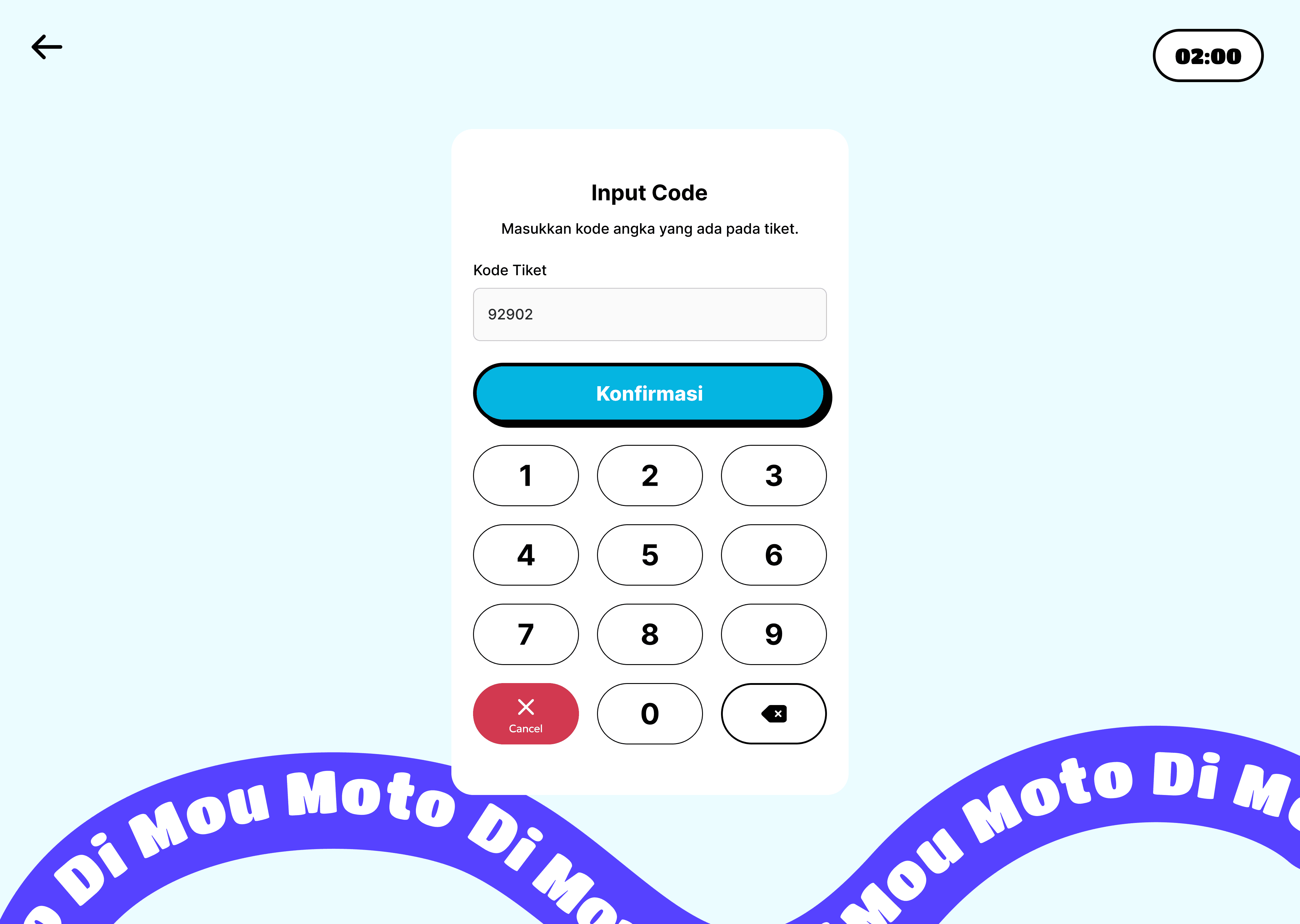
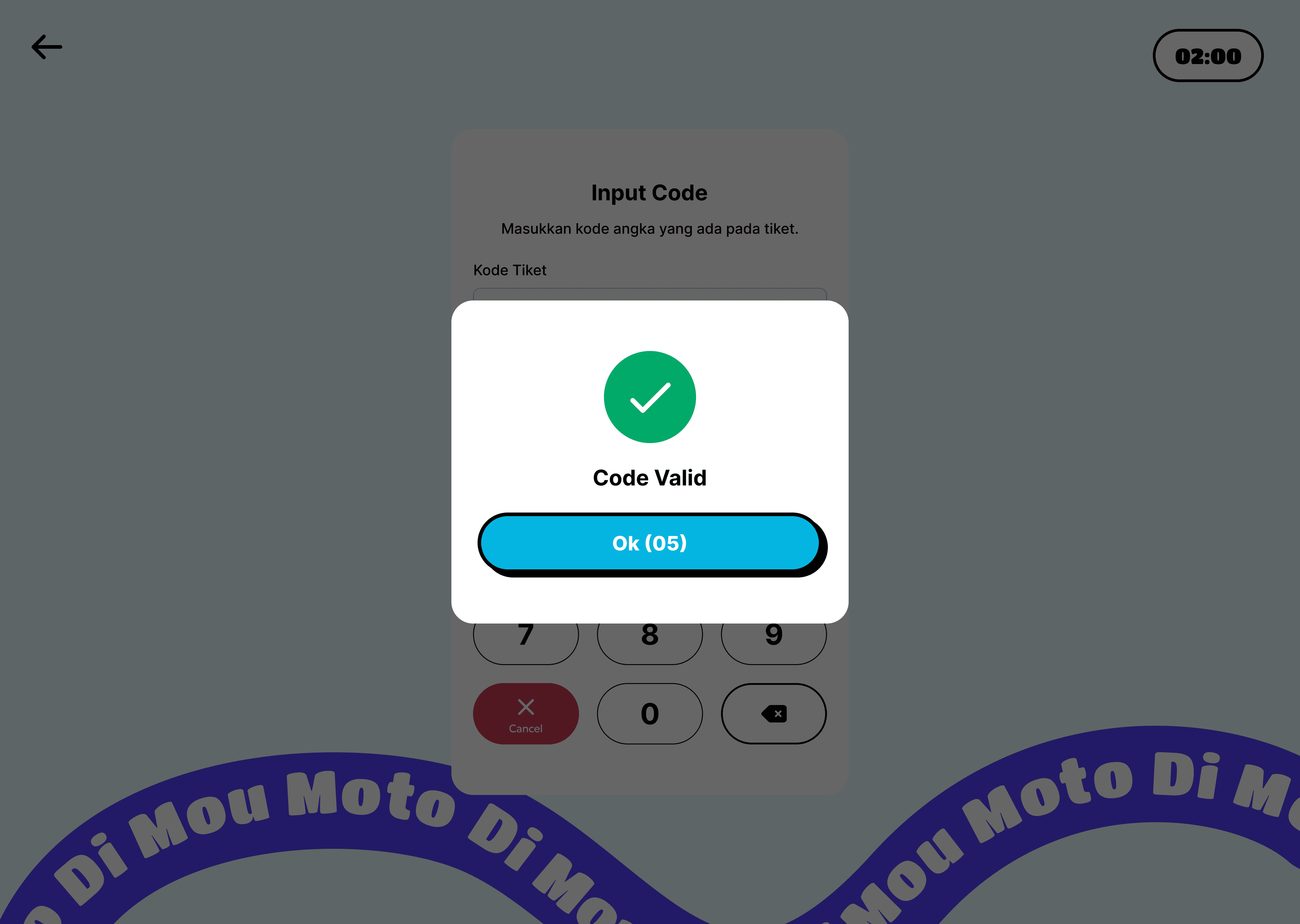
4. Ticket Code Flow
Enter ticket code
If valid → receipt screen shows up
Tap “Start”
Choose session: Photo / Video / Boomerang / GIF
Quick tutorial screen
Take photo/video via third-party app
5. Timeout Screen
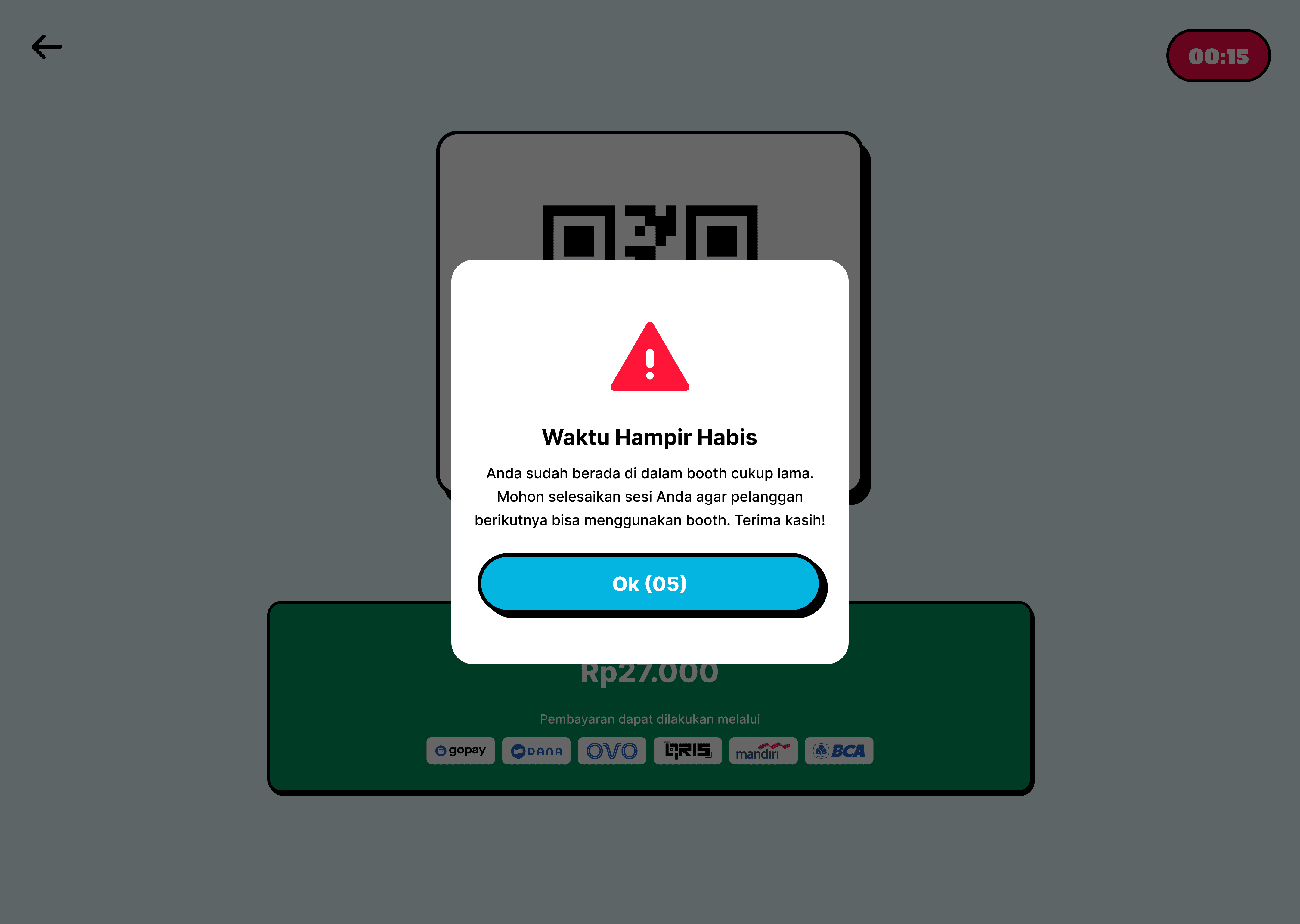
If payment takes too long, a timeout warning pops up. This keeps the booth available for the next user.